 WEB • SEO • APPS • AI
Set up and optimise your Google Business Profile: step by step to more local customers
Search for “electrician near me” and the first thing you see is a map with three businesses – above any website. Whether yours appears there depends largely on one free tool: the Google Business Profile. Here is how to set it up properly.
 Vitalii NechaiFounder of Vetael
- The Google Business Profile is free and, for local searches, often matters more than the website itself.
- What counts most: the right primary category, identical contact details everywhere and a correctly configured service area.
- A simple routine after every job brings in reviews – bought or fake reviews are off-limits.
- The profile works best together with a website that has a matching page for each service and region.
Why the profile matters so much
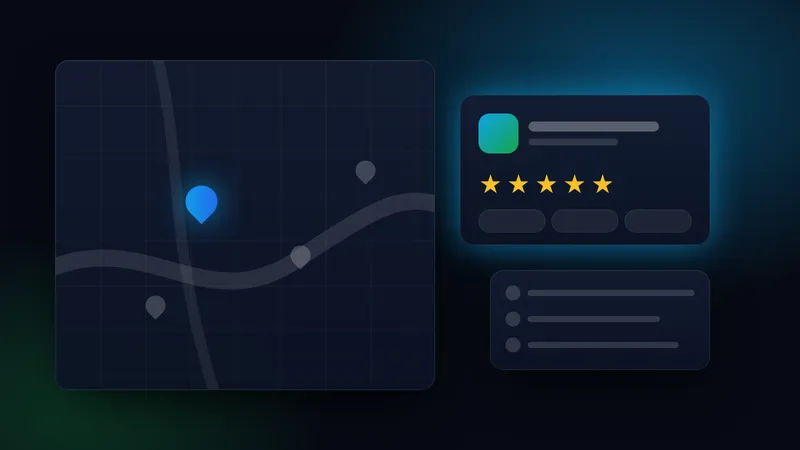
For searches with local intent, Google shows a map with a few businesses above the regular results. There, customers see reviews, opening hours, photos and a call button at a glance. On a smartphone in particular, this is where people decide whom to call. Google ranks these listings by three factors: relevance (does the business match the search?), distance and prominence – which includes reviews and your website. You can’t change distance, but you can influence the other two.
Step 1: Create or claim your profile
Go to business.google.com and sign in with a Google account. Use a company account, not an employee’s personal one – otherwise you lose access when staff change. First check whether your business already exists on Google Maps. Google or a customer has often created it already. In that case, request ownership instead of creating a second listing. Duplicate profiles confuse customers and hurt visibility.
Other people, such as your office manager or agency, can be added later as managers. You keep the owner role.
Step 2: Verification
Before your profile is fully visible, Google checks that your business really exists. Which method you are offered depends on your industry and location – you can’t simply pick one. Options include a video of your premises, vehicle or tools, a code by phone call or text, an email, a live video call or a postcard with a code. The review may then take a few working days.
Record one continuous video, without cuts, showing your business sign or branded vehicle, your equipment and proof that you run the business – for example a key to the workshop. Don’t change your name, address or category while verification is in progress.
Step 3: Name and primary category
Enter your real business name exactly as it appears on your sign, invoices and legal notice. Additions such as “Master Painter Cologne Cheap” break Google’s guidelines and can get your profile suspended.
The primary category is the single most important setting. Choose the most specific one that describes your core business – “Electrician” rather than “Construction company”, “Roofing contractor” rather than “Handyman”. Additional categories cover secondary services but never replace the primary one.
Step 4: Consistent contact details (NAP)
NAP stands for Name, Address, Phone. These details should be identical in your profile, in your website’s legal notice (Impressum), in business directories and on social media. Inconsistencies – an old address, a different phone number, “GmbH” sometimes included and sometimes not – make it harder for Google to trust your business. Check every listing you can find once and fix any differences.
Step 5: Service area instead of address
Many tradespeople and service companies work at the customer’s site and don’t receive visitors. For this, Google offers the service-area business option: your address is hidden and you define towns or postcodes instead. Google allows up to 20 areas and recommends staying within about two hours’ drive of your base. If you have a shop, showroom or workshop with signage and fixed opening hours, show the address.
Step 6: Opening hours and availability
Enter the hours when you are actually reachable and keep special hours up to date for public holidays and company closures. Nothing annoys a customer more than “Open” when nobody answers the phone. If you offer an emergency service, mention it in the description and, where available, in the relevant attributes.
Step 7: Photos, services and description
- Photos: real pictures of your team, vehicles, sites and finished work, ideally before-and-after. Stock photos look generic. Upload new images regularly rather than all at once.
- Services or products: add each important service separately, with a short description and, where it makes sense, a price range.
- Description: up to 750 characters. What you do, for whom, in which region and what sets you apart – factual, without sales promises or lists of links.
- Posts: short updates on projects, offers or events show that the business is active. One post a month is enough.
Step 8: Collect and respond to reviews
Reviews are the strongest trust signal for customers. Most satisfied customers are happy to leave one – they just never get asked. Make it a routine:
- Copy the link to your review form from the profile and turn it into a QR code for invoices or business cards.
- Ask right after the job is done, ideally in person, then follow up with the link by WhatsApp or email.
- Ask all customers, not just the happy ones, and offer nothing in return – Google prohibits both.
- Reply to every review: briefly, personally, without customer data. Respond to criticism calmly and offer a solution – future customers are reading.
Fake or purchased reviews violate Google’s policies and are prohibited in Germany under the Act against Unfair Competition (UWG). Google removes such reviews, can restrict the profile and display a warning. Competitors can send a formal legal warning (Abmahnung). The risk is out of all proportion to any benefit.
Questions and answers
Google has largely removed the former “Questions & answers” section from profiles. In Google Maps, AI is increasingly answering questions about businesses – based on profile details, reviews and website content. For you, this means: answer typical customer questions about prices, service area, scheduling or emergency service on your website, for example in an FAQ section, and keep your profile details complete.
Step 9: Link profile and website
The profile links to exactly one website address. With one location, this is usually the homepage; with several locations, the page for each location. To turn that click into an enquiry, your website needs a dedicated page for each core service and, for a larger service area, pages for key towns – with real content rather than copied text with the town name swapped. We show how such a page is built in our article Websites for tradespeople: 9 things that really bring enquiries and on our page Websites for tradespeople.
Common mistakes
| Mistake | Consequence | Better |
|---|---|---|
| Keywords in the business name | Suspension or name change by Google | Real name, services in category and description |
| Home address visible | Customers turn up at your door | Set a service area, hide the address |
| Two profiles for one business | Reviews split, weaker visibility | Have the duplicate merged or removed via Google support |
| Profile created on an employee’s account | Access lost when they leave | Company account as owner, others as managers |
| Criticism left unanswered | Looks indifferent | Reply calmly within a few days |
Checklist
- Profile claimed with a company account and verified
- Real business name, specific primary category, suitable additional categories
- Name, address and phone identical to legal notice and directories
- Service area set, address hidden if needed
- Opening hours and special hours up to date
- At least ten real photos, services added individually, description written
- Review link as QR code, routine after every job, all reviews answered
- Link to the right website page, service pages and FAQ in place
Conclusion
A well-maintained Google Business Profile costs no money – just a thorough setup and a few minutes a week afterwards. Combined with a fast website and clear service pages, it is one of the most effective ways for local businesses to win new enquiries. If you’d rather not handle it yourself, we take care of it as part of our local search engine optimisation. See pricing for costs, book a free initial consultation or write to us via the contact form.
Frequently asked questions
Does the Google Business Profile cost anything?+
No. The profile, verification, photos, posts and reviews are free. Costs only arise if you also run ads or hand the upkeep to a service provider.
Can I hide my home address?+
Yes. If you don’t receive customers at your address, set up a service area and hide the address. Google knows it for verification but doesn’t display it publicly.
Can I get negative reviews removed?+
Only if they violate Google’s policies – for example insults, spam or when there was never any customer contact. You can report such reviews in your profile. Fair criticism stays – and a calm reply often works better than any removal.
Has been building websites, shops and automations for businesses in Germany for years and knows the daily work of trades and service companies first-hand.
Related services